Start Chatting Already [No Registration Required]
This will take you to the chat room you are looking for
Push notifications on iOS do not activate as easily as with android. An additional step is required before we can start receiving push notifications. The following post will guide us on how to enable notifications for Y99 in Safari, iOS.
1️⃣ Open Y99 as usual. Login your account or not, it works either way. Login is required for the final step.
2️⃣ Look for the circled icon as shown in the image below and tap on it. It should show several options.
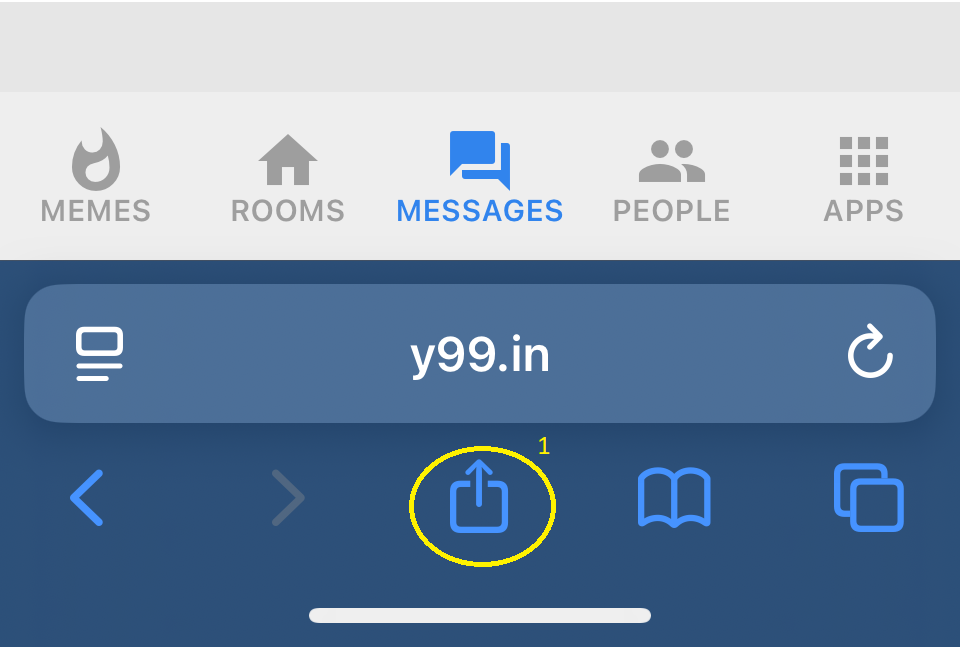
3️⃣ Scroll to bottom in the options to “Add to Home Screen” option.
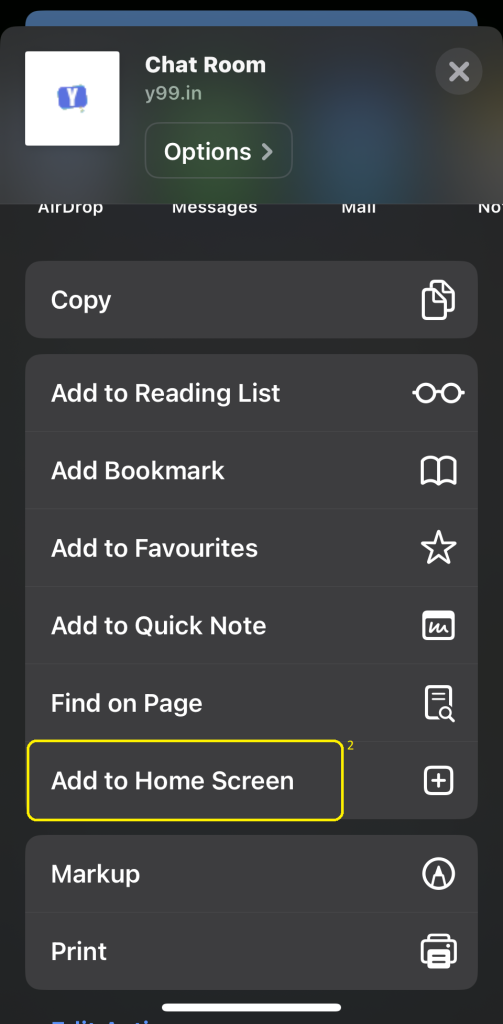
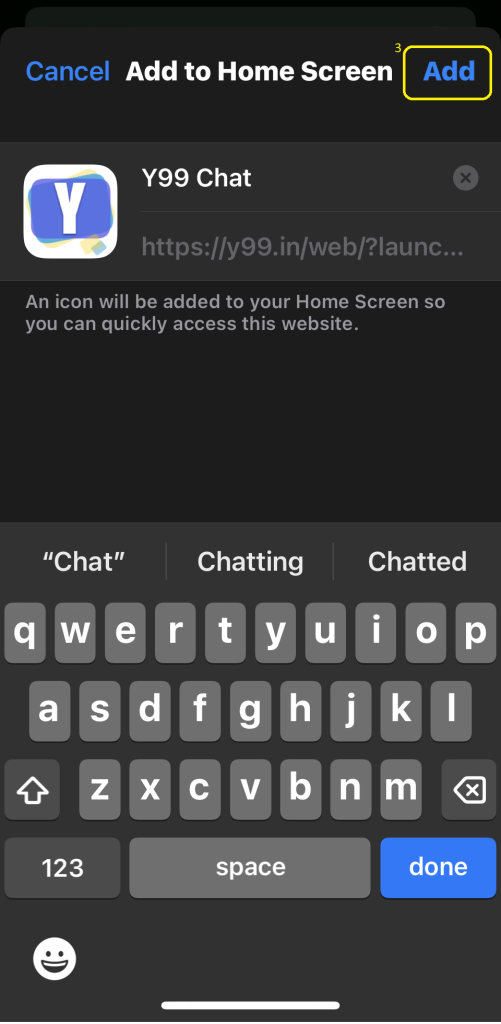
4️⃣ You will then be given the option to add Y99 Chat app to your Home Screen.
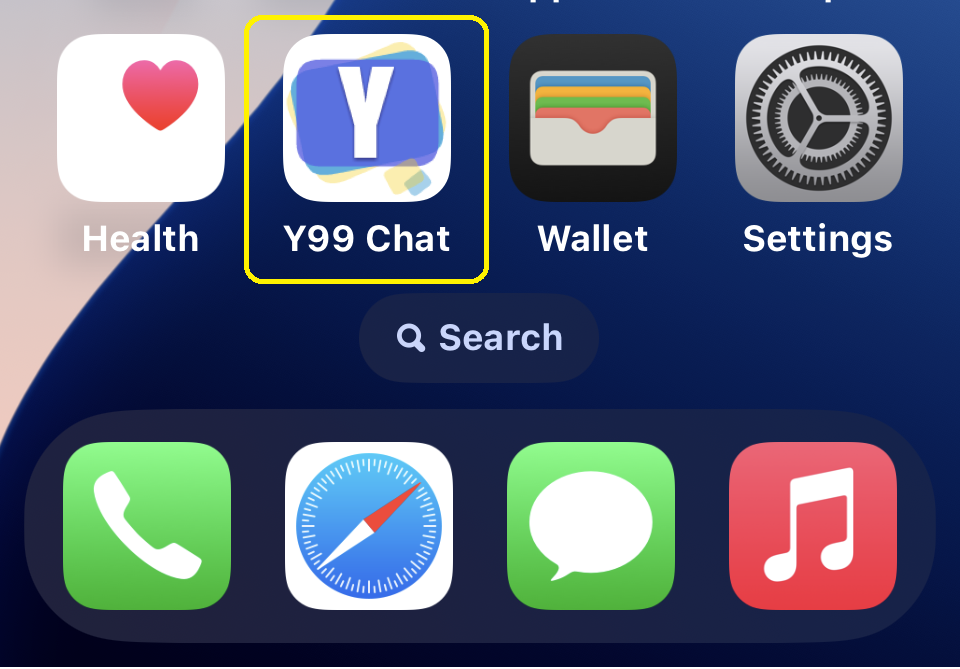
5️⃣ Y99 Chat will then appear with icon on your home screen like other apps. You can use it like your other apps but it’s still working in your browser.
6️⃣ For the final step, we have to login and go to MESSAGES tab and click on the gear icon at the top-right.

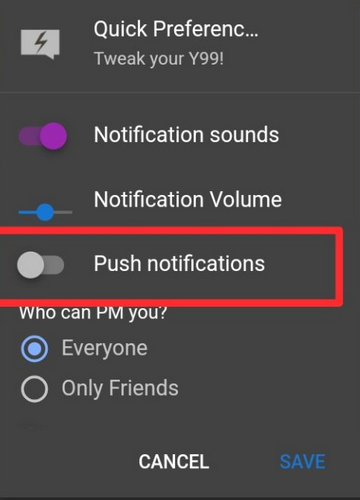
7️⃣ Then toggle Push Notifications in options and Save. It will ask you to allow through a Y99 popup screen within chat just to be sure.
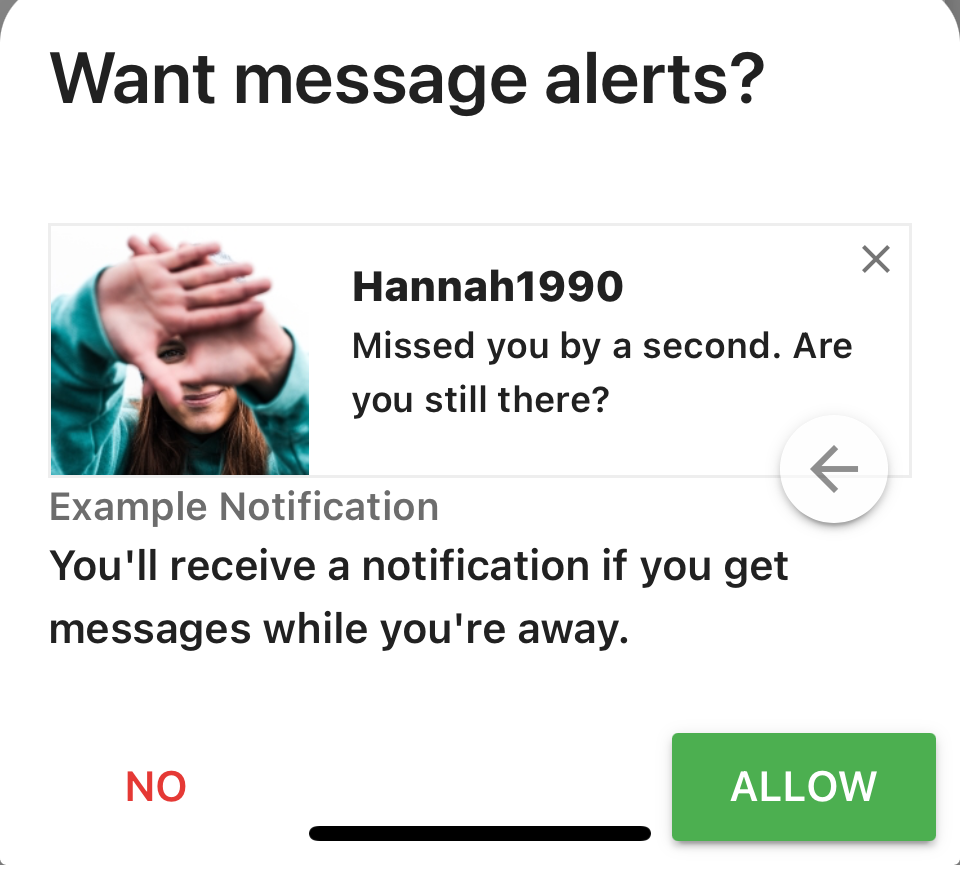
8️⃣ Once you allow there, your browser’s native popup will appear asking you to allow or block notifications. We will click Allow to continue.
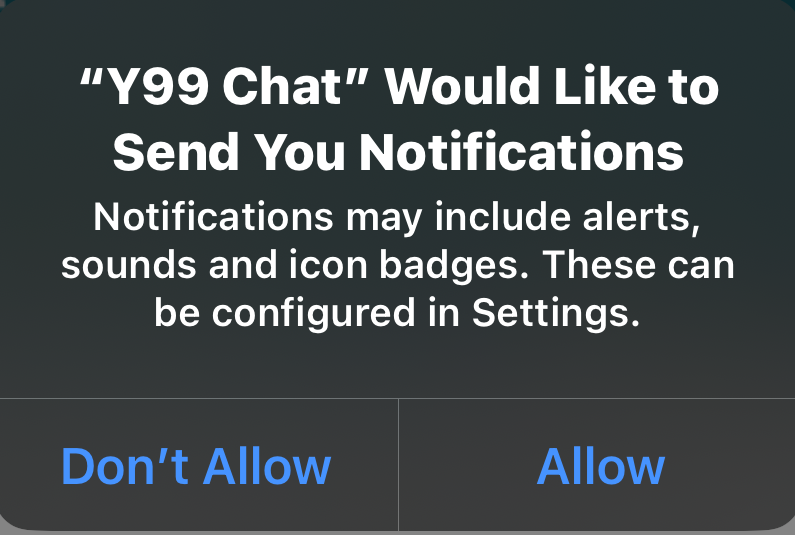
That’s it. Some simple steps and we’re done.
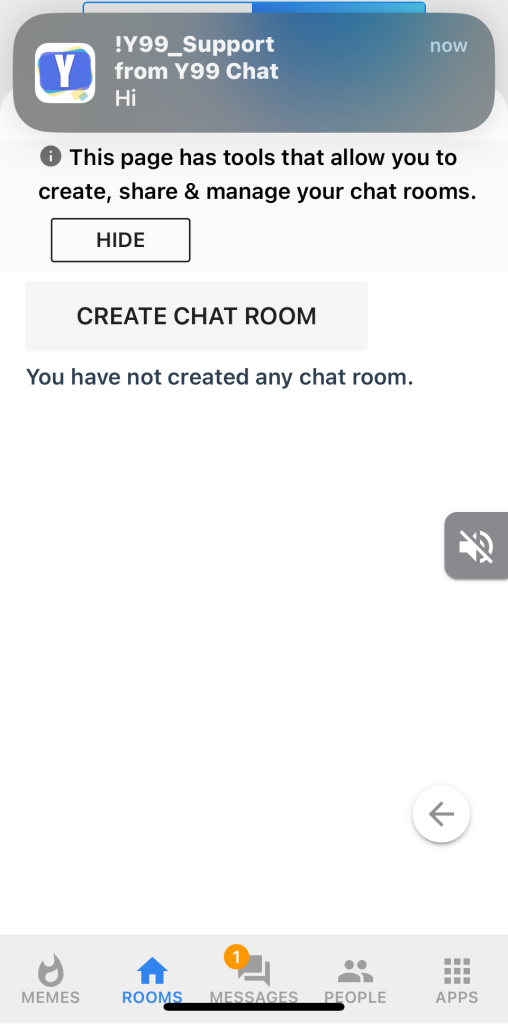
Note: Tapping on several notifications may lead to several tabs opening in your browser. Please clear extra tabs whenever you can to free up resource.